
From document to accounting software — every step transparent
Here is exactly what FinzAI does with every document you submit. No black box — every step is visible to your team.
STEP 1 — CAPTURE
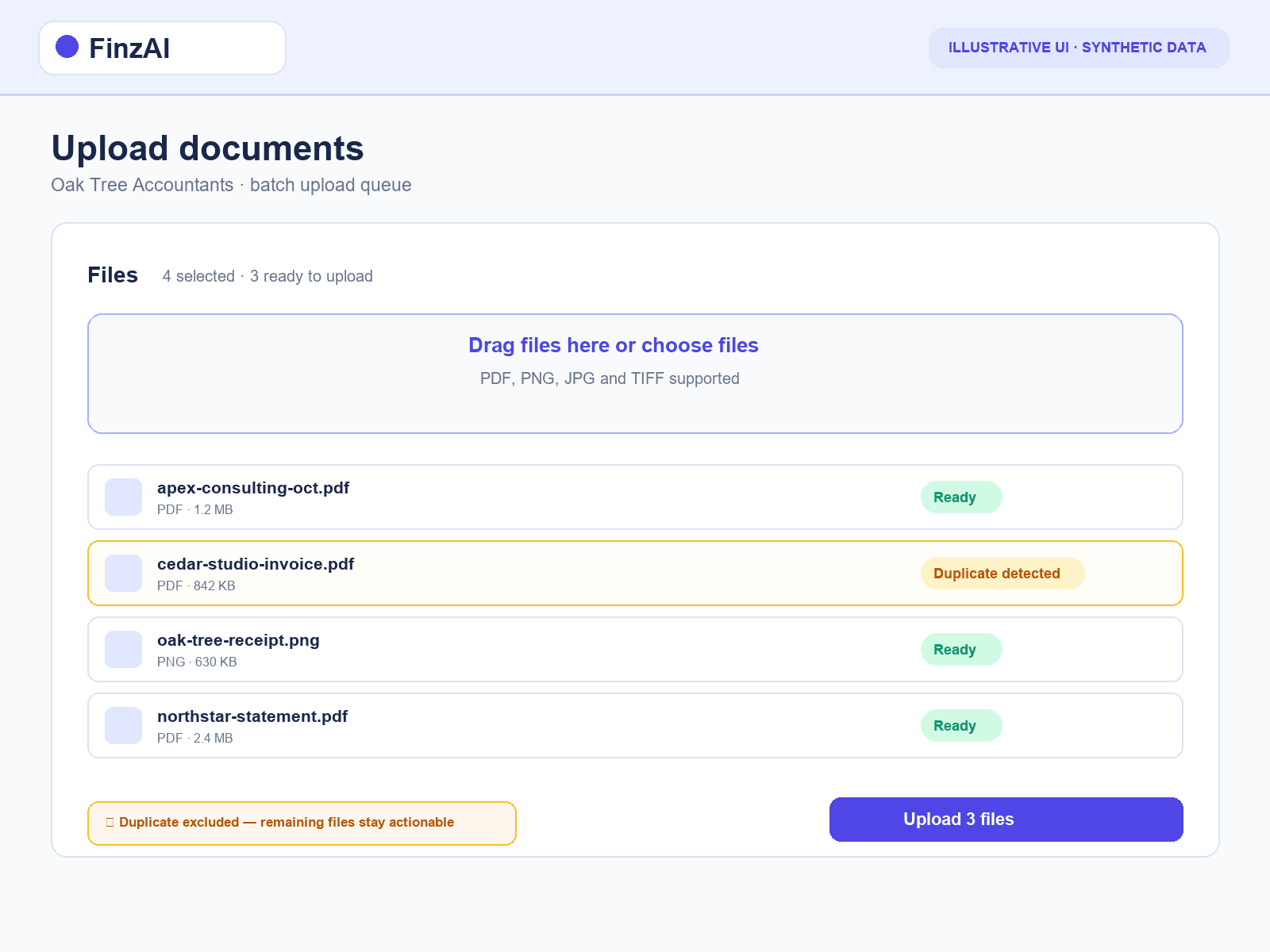
Upload once, process many
Drag and drop up to 20 files at once — PDFs, PNGs, JPGs and TIFFs are all accepted. FinzAI detects duplicates automatically before extraction begins, so a file that has already been processed is flagged immediately, not discovered later in the workflow.
- Batch upload up to 20 files in a single drop
- 50 MB per file
- Duplicate detection before extraction
- Upload scoped to each client's pipeline
STEP 2 — EXTRACT
AI that shows every value and every confidence level
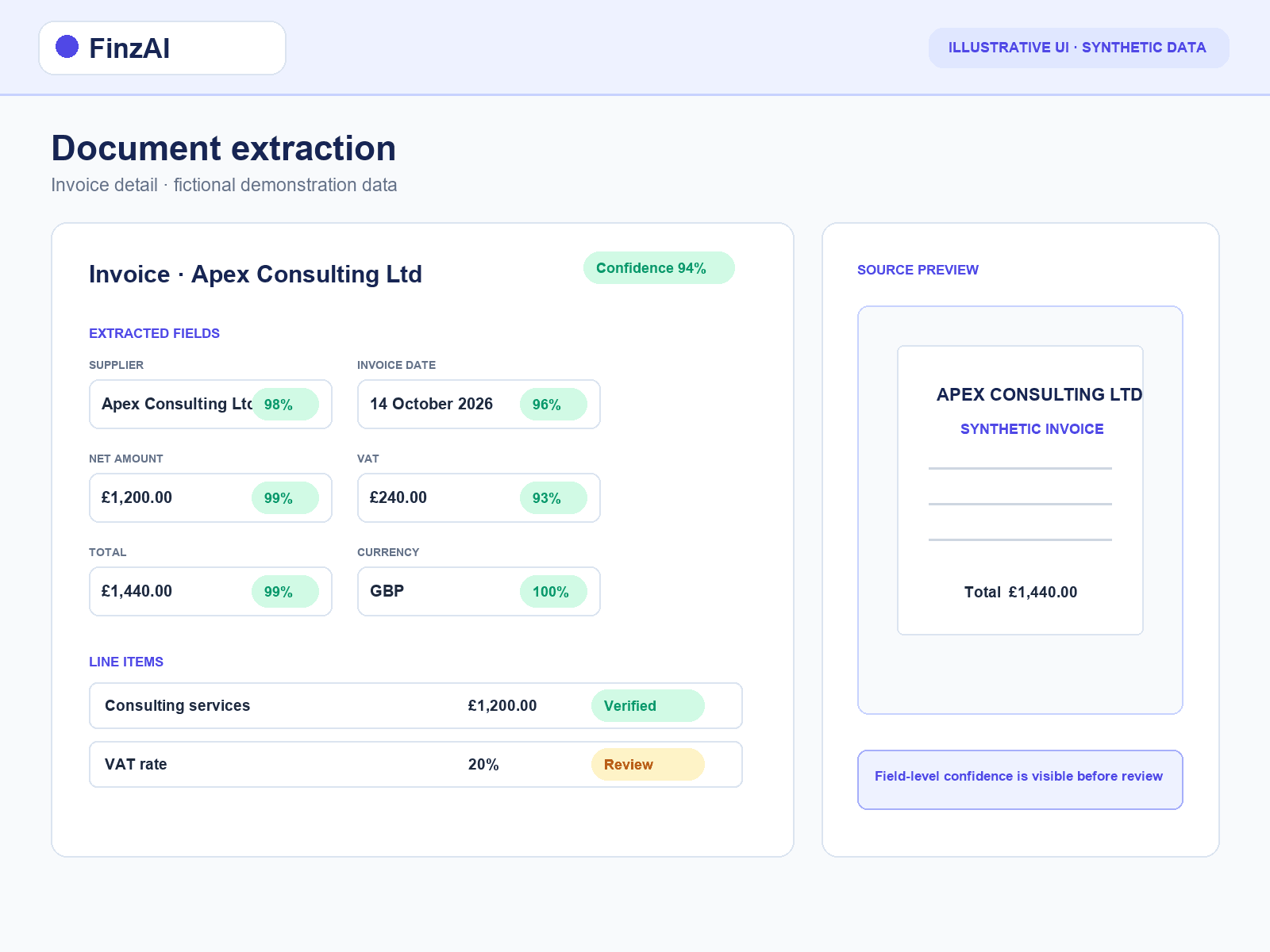
FinzAI reads the document and extracts all relevant fields. For invoices and receipts: supplier, date, net amount, VAT, total, currency and every line item. For bank statements: opening and closing balance, total credits, total debits and individual transactions. Every extracted field carries a confidence score. Every line item receives a validation state with a plain-English reason.
- Invoices and receipts: supplier, date, net, VAT, total, currency, all line items
- Bank statements: opening/closing balance, credits, debits, transactions
- Per-document confidence score (0–100%)
- Per-line validation: verified / warning / error / accepted / rejected, with reason
STEP 3 — REVIEW
A Kanban workflow your team controls
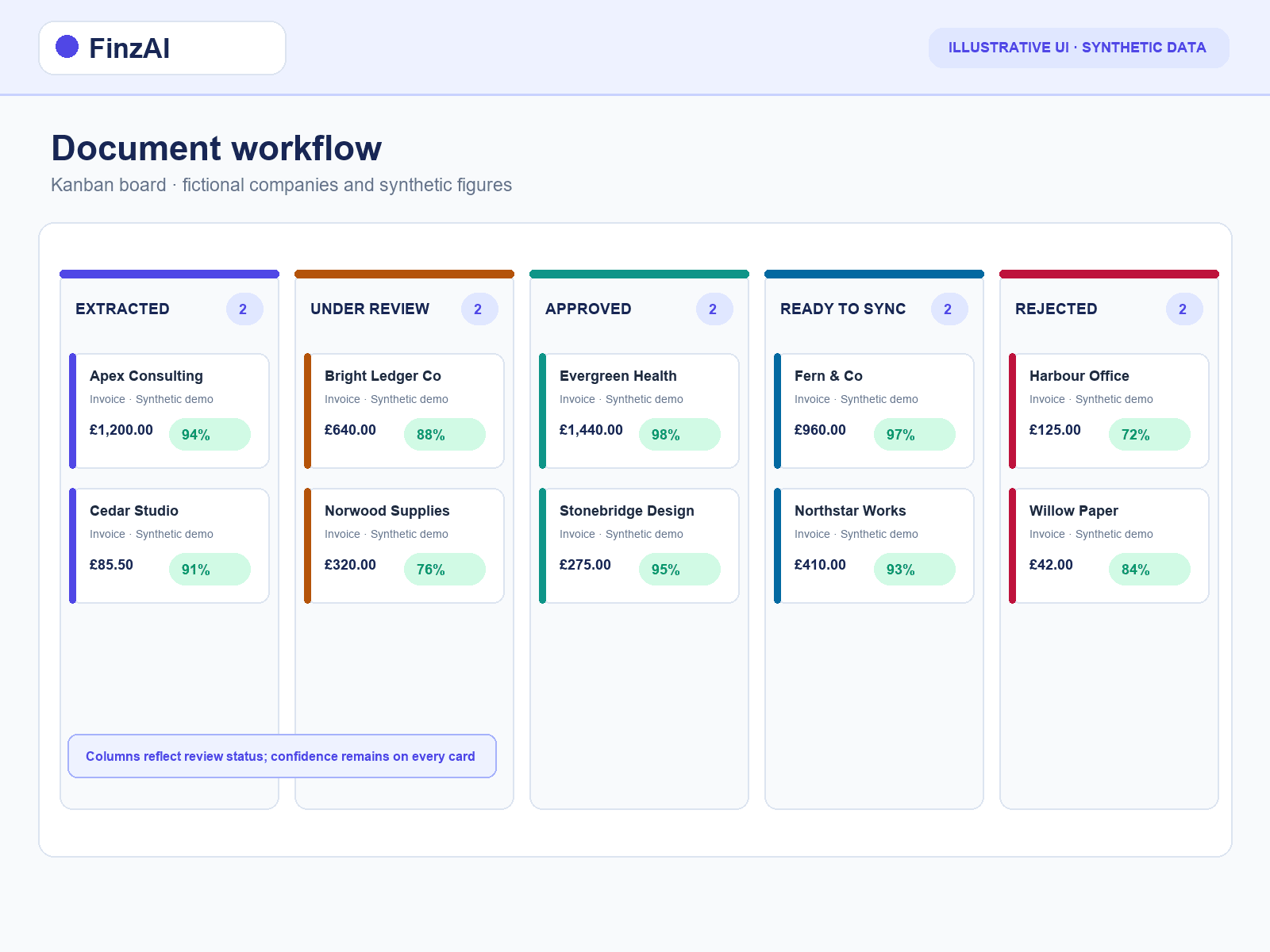
After extraction, every document lands in the Extracted column. Your team reviews extracted values against the original document side by side, edits any field or line item inline, then advances the document to Under Review and on to Approved — or rejects it with a reason. Bulk actions let your team process batches efficiently. Every action is written to the audit trail.
- Five Kanban columns: Extracted, Under Review, Approved, Ready to Sync, Rejected
- Side-by-side document preview and extracted data
- Inline editing of any field or line item
- Bulk approve or reject up to 50 documents
- Every action logged: user, timestamp, old and new value
STEP 4 — SYNC
Push to your accounting software — on your terms
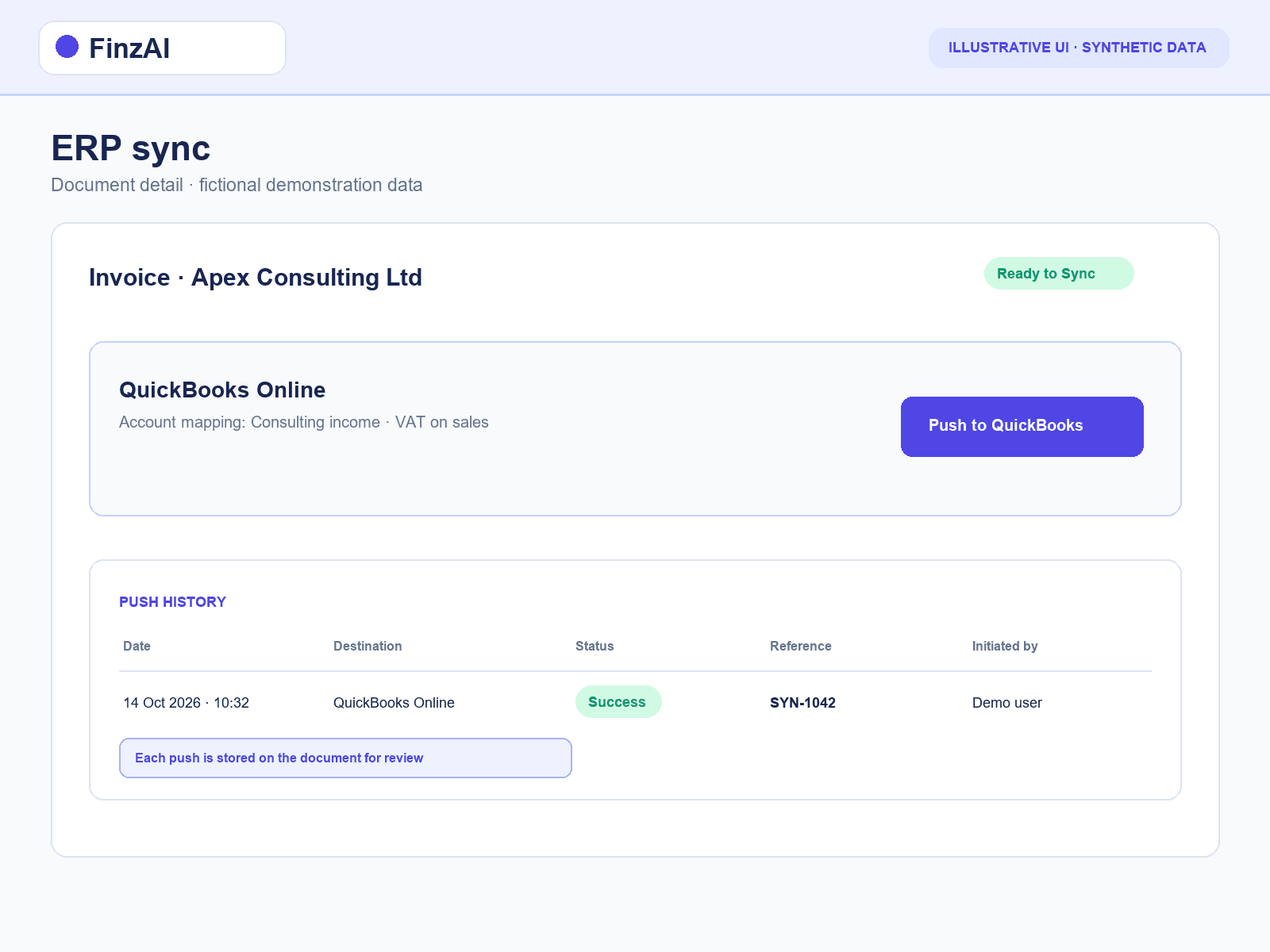
Approved documents move to Ready to Sync. Your team pushes each document to QuickBooks Online or Xero from the document detail view. Account mapping is configured per company — each client's chart of accounts is respected. Push history is stored per document. VT Transaction+ export is available for practices on legacy workflows.
- Push to QuickBooks Online (live)
- Push to Xero (live)
- Per-company account mapping
- Push history and sync status per document
- VT Transaction+ ZIP export
Email ingestion — documents delivered to the pipeline automatically
Connect a dedicated inbound email address via SES or IMAP (including Microsoft 365 via OAuth). Documents sent to that address are automatically ingested into the correct client's pipeline. Routing rules direct different senders or subject patterns to different companies, keeping your pipelines organised without manual sorting.
- SES and IMAP inbound email supported
- Microsoft 365 OAuth connection
- Configurable routing rules
- Activity feed — see every ingested message and its status
[SCREENSHOT: email-inbox-activity-feed.png]
Product screenshot placeholder — synthetic data only, required before launch
See the workflow for yourself
A live demo is the fastest way to understand how the review process works in practice.
Frequently asked questions
Most single-page invoices and receipts are extracted within seconds. Bank statements with many transactions take longer. The document appears in the Extracted Kanban column once processing completes.
That field or line item receives a 'warning' or 'error' validation state, with a plain-English reason — for example 'VAT rate could not be determined'. Your team can inspect the original, correct inline, and approve. The correction is recorded in the audit trail.
Yes. Every field and line item is editable inline on the document detail view. Edits are validated on entry and written immediately to the audit trail with the user's name and the old and new value.
Integrations are connected per company via OAuth on the Company settings page. Once connected, account mapping is configured and documents can be pushed from the Ready to Sync column.
Yes. FinzAI supports concurrent multi-user access. Role-based permissions (Partner, Manager, Staff, Client) control what each member can see and do, and the audit trail records who made each change.